
GPS Emulator
Digitools UYMaps & Navigation
4.83.39K Reviews
- Version
- 3.30
- Installs
- 10.00M
- Age Rating
- Teen
Screenshots
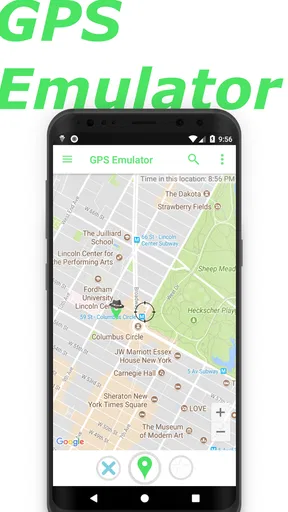
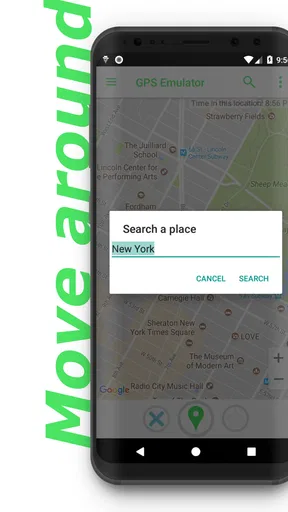
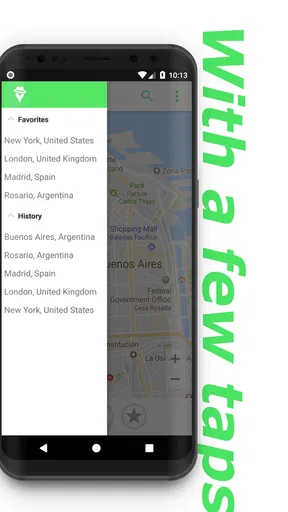
Our Review of GPS Emulator
 Analysis by Appyee
Before changing anything, I’d treat GPS Emulator as a focused utility rather than a navigation app. It is designed to alter the GPS position your phone reports, not to help you find the quickest route or guide you through unfamiliar streets. That distinction matters: if you want turn-by-turn directions, your regular maps app is the better choice; if you need to see how another location affects an app on your phone, this tool has a more specific job.
What to expect from a location emulator
GPS Emulator is a free Maps & Navigation app from Digitools UY. It has an average rating of 4.8 from around 253,000 ratings, and has been installed over 10 million times. Its purpose is simple: choose a point, then have your phone report that GPS position. That can be useful for testing, demonstrations, or checking how location-aware apps behave when you are not physically at the place you want to examine.
The important expectation to set is that changing the phone’s reported coordinates does not move you, change your actual network location, or guarantee that every app will respond as intended. Apps can use different signals and their own rules. I would think of this as a way to test a location-dependent experience, not as a universal switch that makes every service behave as though you were somewhere else.
The age rating is Teen, and the current version is 3.16, with Android 8.0 or later required. The app is free to install, though it offers in-app purchases ranging from $1.49 to $199.99 per item. I would check the purchase details in the app before committing to anything; a basic location change is the first thing to try, rather than assuming a paid option is necessary.
Getting from install to a first useful result
When you open the app, the map gives you a straightforward starting point. Search for a place or move the map and choose a point, then set that location. For a first attempt, I recommend choosing a familiar, easy-to-recognize place rather than a remote coordinate. That makes it simpler to tell whether the result is what you intended when you check another app.
For example, if you are testing a local discovery app, choose a nearby landmark in a different neighborhood and then reopen the app you want to check. Look at whether its displayed location or local results change. If they do not, that does not automatically mean the emulator failed: the other app may need a refresh, may rely on additional location signals, or may restrict simulated locations. Testing one app at a time makes the outcome easier to understand.
A useful habit is to note the point you selected before switching away. On a broad map, it is easy to tap a nearby street or the wrong side of a large venue. Zoom in enough to place the marker deliberately, especially when you are checking a feature that depends on being near a particular location. A small selection error can look like an app compatibility problem when the chosen point is simply not the one you meant.
Choosing locations and making repeat tests easier
One practical advantage is saving favorite locations. If you regularly check the same places, keeping them handy avoids searching from scratch each time. This is particularly useful for repeatable tests: use the same saved point, make one change in the app being tested, and compare the result. Reusing a location reduces one source of variation and makes it easier to work out whether a change in behavior came from the other app or from selecting a different spot.
Saved points can also help with ordinary planning and demonstrations. You might want to show a relative how a location-based service presents a different area, or compare what a local information app displays for two neighborhoods. I would keep the test modest and clear: change the location, check the one result you care about, then restore your usual setting when finished. That avoids forgetting that the phone is still reporting a simulated position later.
For app developers, the value is less about pretending to travel and more about getting a quick manual check without going outside. A developer can examine how an app responds to a chosen place during a basic test. It is not a replacement for a full testing setup, though. If a project needs repeatable automated runs, precise route movement, or checks across many devices, a dedicated development workflow will usually be more suitable than a map-based utility on a personal phone.
How it fits real situations
I find this tool easiest to judge when I connect it to one specific situation rather than treating it as a way to travel virtually. A useful next step is to decide what result you want to check, then use a familiar, clearly identifiable place so you can tell whether the change came through. That small bit of planning also makes it easier to spot when the target app, rather than the selected point, is the source of confusion.
A realistic everyday test
Imagine you are preparing to visit a new part of town and want to see whether a location-based app has useful options there before you leave home. You can select a recognizable point in that area, switch to the app you are checking, and inspect what it shows. If the results seem unchanged, refresh the app or try a second point nearby. This small, controlled test is more informative than jumping between several faraway locations and trying to guess which action caused a difference.
The same approach works for a presentation or a support conversation. If you need to explain how an app behaves around a particular place, a saved location lets you return to a consistent example. I would avoid presenting a simulated result as proof of your physical whereabouts, however. A changed GPS coordinate is not the same thing as being there, and another person or service may have other ways of assessing location.
Where it differs from ordinary navigation apps
Most people in this category reach first for a navigation app because they need directions, traffic context, or help choosing a route. GPS Emulator serves a different purpose: it changes the position the phone reports rather than guiding you to a destination. The two kinds of apps are not direct substitutes. Keep your usual navigation tool for travel, and use an emulator only when the question is how another app responds to a selected location.
It also differs from changing a location inside a single app. An app-specific setting, when available, usually affects only that service and is easier to reason about. A GPS emulator is aimed at the phone’s reported GPS position, so the effect can be broader, but it still does not guarantee that every app will accept or use the simulated point. If only one service needs a different setting, its own controls are often the cleaner option.
Common confusion and sensible limits
The most common misunderstanding is expecting a coordinate change to override every location check. It may not. An app can refresh slowly, use other signals, or treat simulated locations differently. If the first test does not change the result, confirm that the selected point is correct, reopen or refresh the target app, and try a nearby location. If behavior remains unchanged, the limitation may be in that app rather than in your choice of map point.
There is also a trust and account-use trade-off. Some services may prohibit simulated locations or treat them as suspicious, particularly where location affects access, rewards, or other account decisions. I would not use an emulator to mislead a service, bypass its rules, or put an account at risk. It is best suited to legitimate testing, demonstrations, and personal experiments where the other app’s terms allow it.
Privacy is another reason to be precise about what this tool does. It can alter the GPS position reported by the phone, but it is not a general privacy shield. Other information can still reveal something about your real environment or network. If your goal is simply to limit location sharing, review the relevant app and phone settings instead of assuming that a simulated point conceals every signal.
Finally, remember to return to your normal location after a test. A simulated setting left active could make ordinary location-based services show confusing results later. I find it sensible to make resetting part of the same small routine as testing: choose a point, inspect the target app, then restore the usual position before moving on with the day.
Who should try it—and who should choose something else
I would recommend GPS Emulator to curious users who have a clear reason to test a location-dependent feature and are comfortable checking the result in another app. It is also a reasonable starting point for a developer who wants a quick manual check without traveling to each test location. Its straightforward map-based approach makes the first experiment approachable, and the ability to save places is handy when the same locations come up repeatedly.
I would skip it if you are looking for directions, reliable travel navigation, or a tool that guarantees a change in every location-aware service. I would also choose a more specialized testing environment when a project depends on automated testing, exact repeatability, or complex movement between points. Those jobs call for a workflow built for testing, while this app is better understood as a simple way to select and report a different GPS point.
My take after weighing the trade-offs
Overall, GPS Emulator is most useful when you approach it with one specific test in mind. Pick a clear location, check a single app, and interpret the result with the limits of simulated GPS in mind. Its focused purpose is a strength for quick experiments, but it is not a shortcut around every location rule or a replacement for navigation.
If that matches what you need, I think it is worth trying, especially for occasional manual checks or demonstrations. Start with a familiar point, confirm what changes, and restore your normal setting afterward. That simple routine gives you a much clearer sense of whether the app fits your needs than expecting it to make every service behave exactly as if you had traveled there.
Getting Started
Installation is a breeze. Head over to your app store, hit download, and you’re almost ready to roll. Once installed, the user interface greets you with a simple map, and a search bar to find any location you fancy. I was impressed with how straightforward it was—no complicated menus or settings, just straight to the point.
To set your location, all you need to do is drop a pin or type in your desired destination, and voilà! Your phone now thinks you’re sipping espresso by the Eiffel Tower. It’s all very seamless.
The Nitty-Gritty: Features and Performance
One of the standout features of GPS Emulator is its accuracy. Even when I set my location to some pretty remote places, the app didn’t miss a beat. The map is powered by Google, which means you’re getting top-tier precision.
Another cool feature is the ability to save your favorite spots. This makes it easy to switch locations quickly without having to search for them again. Plus, the app allows you to create a list of frequently used locations, which is a neat touch if you have a few places you like to "visit" regularly.
Performance-wise, it runs smoothly without any noticeable lag. I tried it on a couple of different devices, and it worked like a charm each time. It didn’t drain my battery excessively, which is always a bonus for any app.
Who’s It For?
You might be wondering, "Why would I need this?" Well, aside from just having a bit of fun, GPS Emulator is great for app developers who need to test location-based features without physically moving. It’s also a handy tool for anyone who wants to keep their real location private or who needs to access location-specific content that’s not available in their area.
And yes, it’s also for those playful moments when you want to confuse your friends by checking in from some exotic locale. Who wouldn’t want to appear as if they’re globe-trotting from the comfort of their couch?
The Final Verdict
All in all, GPS Emulator is a solid app with a clear purpose. It’s user-friendly, performs well, and is surprisingly versatile. Whether you need it for professional purposes or just want to have a bit of fun, it’s well worth a download.
So, if you’re looking to add a little spice to your app usage or need a reliable tool for location testing, give GPS Emulator a whirl. You might just find yourself enjoying a virtual vacation or two.
Verdict
Strengths of GPS Emulator
- Easy to use interface for beginners.
- Supports multiple location simulations.
- Works seamlessly with most apps.
- Customizable location settings.
- Free version offers robust features.
Limitations of GPS Emulator
- May drain battery quickly.
- Occasional app crashes reported.
- Limited features in free version.
- Ads can be intrusive at times.
- Requires Android 6.0 or higher.
Similar Picks in This Category
View All
Uber - Request a ride
Uber Technologies, Inc.4.7


inDrive. Rides with fair fares
® SUOL INNOVATIONS LTD4.8

Yandex Go: Taxi Food Delivery
Mikromobilnost LLC Belgrade4.8

Bolt: Request a Ride
Bolt Technology4.8

Rapido: Bike-Taxi, Auto & Cabs
Rapido Bike Taxi4.8
You May Also Like
View All

Frequently Asked Questions
What is GPS Emulator and how does it work?
GPS Emulator is an app designed to simulate GPS locations on your device. It allows users to set any location on the map as their current location, providing flexibility for testing location-based apps or services. The app uses a simple interface where you can search for a location or manually select it on a map.
Is GPS Emulator safe to use on my device?
Yes, GPS Emulator is generally safe to use. However, it's important to download it from a reputable source like the official app store to avoid malware. Additionally, be aware that using location-spoofing apps might violate the terms of service of some apps. Always use it responsibly and understand the legal implications.
Can GPS Emulator affect other applications on my device?
GPS Emulator can influence apps that rely on location data by feeding them the spoofed location. While this is the main purpose of the app, be cautious as it might interfere with navigation apps or services that require accurate location data. Always remember to disable the emulator when you need your actual location.
Does GPS Emulator require internet access to function?
While GPS Emulator itself doesn’t require constant internet access, it may need it initially to load maps and search for locations. Once a location is set, it can often operate offline. However, apps using the spoofed location might still need internet access, depending on their specific requirements.
Is GPS Emulator free to use, and are there any in-app purchases?
GPS Emulator is typically available as a free download, but it may offer in-app purchases to unlock additional features or remove ads. It's advisable to check the app store listing for detailed information on the pricing structure and features included in the free version.
